1. Espace Professionnels
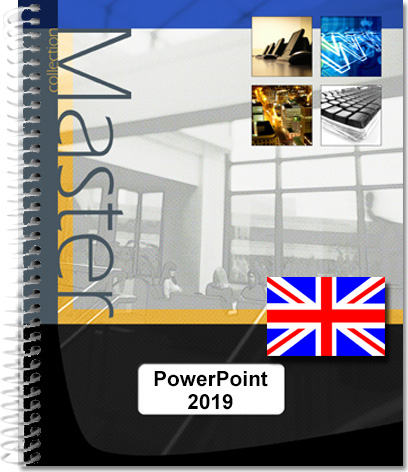
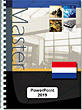
  2. PowerPoint 2019 and Office 365 versions - (E/E): Text in English with the English version of the software

PowerPoint 2019 and Office 365 versions (E/E): Text in English with the English version of the software

Informations

Livraison possible dès le 08 octobre 2026
  • Version en ligne offerte pendant 1 an
  • Personnalisable
  • Livres rédigés par des auteurs francophones et imprimés à Nantes

Informations

  • Consultable en ligne immédiatement après validation du paiement et pour une durée de 10 ans.
  • Version HTML
  • Livres rédigés par des auteurs francophones et imprimés à Nantes
This practical guide provides detailed information about all the possibilities of Microsoft® PowerPoint. It is designed for anyone interested in learning to use this software. It was written for Powerpoint 2019, but also covers the new features and aspects of the version supplied with Office 365. After describing the new environment, the different views, and the ways to manage documents (opening and saving presentations and templates, sharing and storing with OneDrive, managing photo...
  • Niveau Initié à Confirmé
  • Nombre de pages 312 pages
  • Parution janvier 2020
  • Niveau Initié à Confirmé
  • Parution janvier 2020
This practical guide provides detailed information about all the possibilities of Microsoft® PowerPoint. It is designed for anyone interested in learning to use this software. It was written for Powerpoint 2019, but also covers the new features and aspects of the version supplied with Office 365.

After describing the new environment, the different views, and the ways to manage documents (opening and saving presentations and templates, sharing and storing with OneDrive, managing photo albums, printing, etc.), you will learn to create and edit the various elements of presentations: slides, masters, themes, backgrounds, sections, and more.

At that point, you will be able to create the contents of your slides by adding text, managing the outline and applying text formats. You will also find out how to create, edit and format all kinds of objects: shapes, tables, pictures, sounds, diagrams, and charts. You will also learn how to use video editing features (adding, cropping, applying artistic effects, clipping the beginning or end of videos) and how to edit pictures (artistic effects, removing backgrounds, reflections, corrections and colours, compression, etc.).

You will then be ready to run your first slide show and include animation effects, clickable images representing one or more slides (summary zoom, slide zoom, and section zoom), notes, and more. You will learn how to set the timing of slides, add traditions (including the popular Morph effect), save the slideshow as a video file in order to reuse the animation in other presentations, or share it with your contacts via DailyMotion or Youtube.


The last section is devoted to advanced functions, such as group work (sharing and co-editing a presentation), customising the ribbon, managing user accounts, and linking with other Office applications.

Caractéristiques

  • Reliure spirale - 17 x 21 cm (Médian)
  • ISBN : 978-2-409-02234-0
  • EAN : 9782409022340
  • Ref. ENI : ME19POW

Caractéristiques

  • HTML
  • ISBN : 978-2-409-02133-6
  • EAN : 9782409021336
  • Ref. ENI : LNME19POW
Overview
  1. Starting PowerPoint 2019
  2. Closing PowerPoint 2019
  3. Getting to know the PowerPoint 2019 workspace
  4. Displaying the context menu
  5. Using the ribbon
    1. Using the ribbon
    2. Minimising the ribbon
  6. Adapting the ribbon for touch screens
  7. Moving the Quick Access Toolbar
  8. Showing/hiding buttons on the Quick Access toolbar
  9. Undoing the most recent actions
  10. Re-doing undone actions
  11. Repeating the last action
  12. Using Tell Me
    1. Intuitive Help
    2. Help Tab
View
  1. Showing/hiding ScreenTips
  2. Customising the status bar
  3. Changing views
    1. Normal view
    2. Outline view
    3. Slide Sorter view
    4. Notes Page view
  4. Displaying rulers/gridlines
  5. Changing the zoom level
  6. Displaying a presentation in greyscale or in black and white
  7. Managing window displays
    1. Activating a window
    2. Opening a new window showing the same presentation
    3. Reorganising window display
  8. Optimising the display
Creating presentations
  1. Creating a basic presentation
  2. Creating a presentation using a template/theme
    1. Creating a presentation using a predefined theme
    2. Creating a presentation using your own template
    3. Creating a presentation using a downloaded template
  3. Creating a photo album
    1. Adding pictures to the album
    2. Creating a text slide in the album
    3. Choosing the album layout
    4. Managing pictures in the album
    5. Creating the photo album
  4. Creating a new presentation from an existing presentation
  5. Creating a presentation using an outline file
Managing presentations
  1. Opening a presentation
  2. Opening a recently used presentation
  3. Managing the list of recently used presentations/folders
  4. Closing a presentation
  5. Saving a presentation
    1. Saving a new presentation (PowerPoint 2019)
    2. Saving a new presentation (PowerPoint Office 365)
    3. Savng an existing presentation
    4. Changing the default folder for saving files
  6. Using OneDrive online storage
    1. Benefits of using OneDrive
    2. Saving a presentation to OneDrive (PowerPoint 2019)
    3. Saving a presentation to OneDrive (PowerPoint Office365)
    4. Opening a presentation saved to OneDrive
  7. Opening an unsaved presentation
  8. Using autosaved versions
    1. Accessing the versions list
    2. Saving the currently displayed version
    3. Changing the autosave settings
  9. Using PowerPoint 2019 presentations in previous versions of PowerPoint
    1. Checking presentation compatibility
    2. Saving a PowerPoint presentation in 97-2003 format
  10. Using presentations from versions prior to PowerPoint 2007
    1. Working in compatibility mode with PowerPoint 2019
    2. Converting a presentation to PowerPoint 2019 fileformat
  11. Using OpenOffice Impress presentations in PowerPoint 2019
    1. Opening an Impress presentation
    2. Saving an Impress presentation in PowerPoint 2019format
    3. Saving a presentation in OpenOffice Impress format
  12. Saving a presentation in PDF or XPS format
  13. Saving a presentation as a template
  14. Saving a presentation as an outline
  15. Protecting a presentation with a password
  16. Displaying/updating presentation properties
  17. Copying the access path of a file or folder
  18. Sending a presentation by email
Printing
  1. Creating page footers (printing slides option)
  2. Creating page headers and footers (printing Handouts, Notes Pages and Outline Views)
  3. Changing the page orientation for printing
  4. Printing a presentation
Slides
  1. Introduction
  2. Changing the slide orientation
  3. Changing slide size
  4. Scrolling through slides
  5. Selecting slides
  6. Numbering slides
  7. Using placeholders on a slide
  8. Creating a slide
  9. Applying a layout to one or more slides
  10. Deleting slides
  11. Copying/moving slides
    1. Using drag and drop
    2. Using the Clipboard
  12. Duplicating slides
  13. Inserting one or more slides from another presentation
  14. Inserting slides from an outline file
  15. Using sections
    1. Inserting sections
    2. Renaming a section
    3. Deleting a section
    4. Showing / hiding the slides in a section
    5. Moving a section
    6. Printing a section
Master View
  1. Switching to Master view
  2. Getting to know Slide Master view
    1. Creating a new Slide Master/a new layout
    2. Adding a layout
  3. Changing Slide Master/layout
    1. Managing content in Slide Master view
  4. Managing placeholders in Slide Master view
  5. Preserving Slide Masters
  6. Changing the Handout Master
  7. Changing the Notes Master
Themes
  1. Applying a theme
    1. Normal or Slide Sorter view
    2. Slide Master view
  2. Choosing a default theme
  3. Customising the theme colour scheme
    1. Applying a new colour set
    2. Creating a colour set
  4. Customising theme fonts
    1. Applying a new font set
    2. Creating a font set
  5. Using theme effects
  6. Saving a theme
Background
  1. Applying backgrounds
    1. Normal or Slide Sorter view
    2. Slide Master view
  2. Hiding background graphics
  3. Customising backgrounds
    1. Applying a single background colour
    2. Applying a gradient
    3. Applying a texture or picture
    4. Applying a pattern
Typing text
  1. Typing titles/subtitles/texts
  2. Typing a bulleted list
  3. Typing notes
  4. Managing AutoFit options
  5. Moving around inside a text placeholder
  6. Selecting text inside a placeholder
  7. Modifying text
  8. Inserting special characters
  9. Working with the outline pane
  10. Using the Speak feature
    1. Adding this feature to the Quick Access Toolbar
    2. Using the Speak feature
Reviewing text
  1. Correcting a spelling error
  2. Checking the spelling of a whole presentation
  3. Checking spelling in another language
  4. Translating text
  5. Searching for synonyms
    1. Using the context menu
    2. Using the Thesaurus
  6. Searching for text
  7. Searching for and replacing text
  8. Using Smart Lookup
Character formats
  1. Changing character case
  2. Changing font and font size
  3. Replacing a font
  4. Changing character formats
  5. Changing text colour
  6. Changing character formats using the mini toolbar
  7. Changing character spacing
  8. Apply WordArt styles to text
  9. Changing text fill
  10. Changing text outline
  11. Applying special text effects
  12. Copying character formatting
  13. Cancelling all text format changes
Paragraph formats
  1. Managing bullets
    1. Changing paragraph bullets
    2. Customising paragraph bullets
    3. Inserting a picture as a bullet
  2. Numbering paragraphs
  3. Changing line spacing in paragraphs
  4. Changing spacing between paragraphs
  5. Changing the horizontal alignment of paragraphs
  6. Changing paragraph indentation
  7. Managing tab stops
Text layout
  1. Changing vertical text alignment
  2. Modifying text orientation
  3. Arranging text into columns
Ready-made shapes
  1. Drawing shapes
  2. Inserting an icon
  3. Drawing a curve or a freehand shape
  4. Making a freehand drawing
  5. Remodelling a shape
  6. Replacing one shape with another
  7. Changing points on a shape
  8. Changing the segments in a shape
  9. Drawing connectors
  10. Drawing an action button
Text boxes
  1. Inserting a text box
  2. Inserting a WordArt object
  3. Changing the formatting of a text box
    1. Resizing a textbox to fit the contents
    2. Changing the horizontal and vertical text alignment
    3. Changing the margins in a text box
  4. Changing the shape of a text box
Tables
  1. Inserting a table
  2. Drawing a table
  3. Selecting inside a table
  4. Inserting/deleting rows/columns
  5. Merging cells
  6. Splitting cells
  7. Sizing a table
  8. Changing row height/column width
    1. Changing the size of one column/row
    2. Changing the size of several rows/columns
    3. Distributing row height/column width
  9. Changing cell alignment
  10. Changing the direction of cell text
  11. Changing table quick styles
  12. Changing quick style options on a table
  13. Changing cell shading
  14. Applying a background to a table
  15. Applying borders to cells
  16. Applying special effects to cells
  17. Deleting a table
Pictures
  1. Inserting a picture file
  2. Using the Powerpoint Designer
  3. Searching for and inserting pictures from the Internet
  4. Inserting and working with 3D models
    1. From a file
    2. From Remix 3D online sources
    3. Changing a 3D model
  5. Inserting a Screenshot
    1. Inserting a whole window
    2. Inserting part of a window
  6. Changing picture borders
  7. Using Picture Styles
  8. Applying special effects to a picture
  9. Applying an artistic effect to a picture
  10. Changing the shape of a picture
  11. Fitting the picture to the shape or filling the shape
  12. Softening the edges of a picture
  13. Making one of the picture colours transparent
  14. Changing the brightness, contrast and sharpness of a picture
  15. Changing picture colours
  16. Changing colour saturation and tone
  17. Cropping pictures
    1. Manually
    2. Specifying exact dimensions
    3. Adjust to current size
  18. Trimming a picture
  19. Resetting the original picture
  20. Compressing pictures
  21. Disabling picture compression
  22. Setting picture resolution
  23. Converting one or more objects to pictures
  24. Converting one or more slides to pictures
Multimedia
  1. Inserting a video file
  2. Inserting a Youtube video
  3. Inserting a video available on a website
  4. Creating a video by recording on-screen action
  5. Playing back a video
  6. Changing the video frame size
    1. Manually
    2. Precisely
  7. Changing the video frame border
  8. Changing the shape of the video border
  9. Cropping the video frame
  10. Applying a style to a video
  11. Applying a special effect to a video
  12. Changing the colour of a video
  13. Changing the brightness and contrast of a video
  14. Changing the video image
  15. Changing video playback settings
  16. Inserting an audio file
  17. Recording a sound
  18. Changing audio playback settings
  19. Showing/hiding audio or video clip playback controls
  20. Trimming an audio or video clip
  21. Adding/removing bookmarks
    1. Adding bookmarks
    2. Removing a bookmark
  22. Compressing an audio or video clip
  23. Checking and optimising multimedia file compatibility
Diagrams
  1. Inserting a diagram
  2. Managing bullets in a diagram
  3. Managing diagram shapes
  4. Changing the general settings of a diagram
  5. Converting text boxes/pictures to diagrams
    1. Converting text boxes
    2. Converting pictures to SmartArt diagrams
    3. Converting diagrams to text or shapes
Charts
  1. Inserting Charts
  2. Modifying chart data
    1. Resizing the chart data range
    2. Navigating and/or selecting in the worksheet
    3. Entering data
    4. Clearing data
    5. Changing column width
    6. Adding rows/columns
    7. Deleting rows/columns
  3. Switching chart rows and columns
  4. Selecting elements on a chart
  5. Changing the chart/series type
  6. Applying a ready-made layout to a chart
  7. Displaying/hiding chart elements
  8. Changing the content of an updateable text box
  9. Changing the horizontal axis
  10. Changing the vertical axis
  11. Changing data labels
  12. Applying a style to a chart
  13. Changing text direction in a chart element
  14. Changing the overlap/gap width on bar chart series
  15. Changing a pie chart
    1. Exploding one or/all the slices in a piechart
    2. Rotating the pie chart
Managing objects
  1. Introduction
  2. Selecting objects
    1. Selecting an object
    2. Selecting several objects
    3. Deselecting objects
  3. Using the Selection pane
    1. Selecting objects
    2. Renaming objects
    3. Reorganising the objects list
    4. Hiding/showing objects on a slide
  4. Removing objects
  5. Moving objects
    1. Moving an object within the same slide
    2. Moving an object to a different slide
  6. Copying objects
    1. Copying an object within the same slide
    2. Copying an object to a different slide
  7. Duplicating objects
  8. Sizing objects
    1. Sizing "by eye"
    2. Precision sizing
    3. Defining the size of an object by scaling
  9. Positioning objects with precision
  10. Positioning objects on the grid
  11. Using smart guides
  12. Showing/using drawing guides
  13. Aligning objects
  14. Distributing objects
  15. Rotating an object
    1. Rotating "by eye"
    2. Changing the orientation of an object
    3. Entering specific rotation angles
  16. Changing the stacking order of objects
  17. Grouping/ungrouping objects
    1. Grouping objects
    2. Changing the objects in a group
    3. Separating out the objects in a group
    4. Regrouping the objects in a former group
  18. Combining/merging shapes
    1. Uniting shapes
    2. Combining shapes
    3. Fragmenting shapes
    4. Creating a shape from the intersection between shapes
    5. Subtracting a shape from a shape
  19. Associating an action with an object
Appearance of objects
  1. Introduction
  2. Applying a quick style to an object
  3. Changing an object’s fill settings
  4. Changing the outline of an object
  5. Applying special effects to an object
  6. Applying/customising a shadow effect
  7. Applying/customising glow effects
  8. Customising a 3-D effect
    1. Rotating a 3-D effect
    2. Customising a 3-D effect
  9. Changing line endings
  10. Copying an object’s format
Sharing slide shows
  1. Running a slide show
  2. Using Reading View
  3. Advancing through slides/running animation
  4. Showing a black/white screen during the slide show
  5. Using the magnifier
  6. Hiding/showing the pointer during a slide show
  7. Using the laser pointer
  8. Writing ink annotations during a slide show
    1. Choosing a pen style and ink colour
    2. Inserting ink annotations
    3. Removing ink annotations
    4. Displaying/hiding ink annotations
    5. Saving ink annotations
  9. Creating, showing and printing custom slide shows
    1. Creating a custom slide show
    2. Showing a custom slide show
    3. Printing a custom slide show
  10. Getting to know the Presenter view
    1. Enabling the Presenter view
    2. Running the slide show on both monitors
  11. Broadcasting a slide show to remote workstations
Animations
  1. Introduction
  2. Applying an animation effect
  3. Choosing effect options
    1. On a text placeholder
    2. On a diagram
    3. On a chart
  4. Creating a custom motion path
  5. Adding a further animation effect
  6. Replacing one animation effect with another
  7. Previewing animations
  8. Displaying the Animation pane
  9. Selecting one or more animation effects
  10. Removing one or more animation effects
  11. Re-ordering animation effects
  12. Changing the way an animation is initiated
    1. Automating effect initiation
    2. Starting an animation by clicking a specific object
    3. Triggering the animation using a bookmark
  13. Timing an animation effect
    1. First method
    2. Second method
  14. Repeating an animation effect
  15. Adding a sound to an animation effect
  16. Changing an object’s colour or hiding an object after its animation has run
  17. Customising the animation effect on an object containing text
  18. Customising an animation effect on an audio or video object
  19. Copying animation effects from one object to another
Hyperlinks
  1. Inserting a clickable image (Zoom) on one or more slides
    1. Summary Zoom
    2. Slide Zoom
    3. Section Zoom
  2. Changing the image of a zoom preview
    1. Changing the style of a zoom image
    2. Setting zoom options for the slideshow
  3. Creating a hyperlink
    1. Creating a link to a new file
    2. Creating a link to an existing file or a web Page
    3. Creating a link to a location in the current presentation
    4. Creating a link to an E-mail address
  4. Following a hyperlink
  5. Changing/deleting a hyperlink
    1. Changing a hyperlink
    2. Deleting a hyperlink
Customising slide shows
  1. Managing slide show settings
  2. Hiding slides in the slide show
  3. Recording a narration, timings and laser pointer movements during the slide show
  4. Setting up timings
    1. Saving timings during slide show rehearsals
    2. Defining timing manually
  5. Applying visual transition effects to slides
  6. Using the Morph transition
    1. Examples of effect options for objects
    2. Examples of effect options for words or characters
  7. Applying a transition sound effect to slides
  8. Saving the slide show
  9. Saving the slide show as a video
Group work
  1. Introduction
  2. Sharing a presentation
  3. Managing access to a shared presentation
  4. Generating a sharing link
  5. Co-editing a presentation
    1. Co-editing a presentation with PowerPointonline
    2. Co-editing a presentation with PowerPoint
  6. Inserting comments
    1. Creating a comment
    2. Showing/hiding comment icons
    3. Viewing a comment
    4. View all the comments one by one
    5. Changing a comment
    6. Moving a comment
    7. Removing one or more comments
    8. Responding to a comment
  7. Marking a presentation as final
  8. Comparing presentations
  9. Accepting or rejecting changes
Other applications
  1. Importing data from Microsoft Excel or Word
    1. Copying without a creating a link
    2. Copying with a link
    3. Copying as a hyperlink
  2. Inserting an object from another application
    1. Creating a new object
    2. Inserting an existing object
  3. Exporting a presentation to Microsoft Office Word
  4. Creating a presentation package
Customising the PowerPoint interface
  1. Customising the Quick Access toolbar
    1. Adding a command
    2. Removing a command
    3. Changing the display order of commands
  2. Displaying and working with new tabs
  3. Customising the ribbon
    1. Creating/removing a group
    2. Creating/removing a tab
    3. Adding/removing a command
    4. Renaming a tab, group or command
    5. Showing/hiding tabs
    6. Moving a tab, group or command
  4. Exporting/importing the ribbon and Quick Access toolbar
  5. Restoring the default settings for the ribbon and Quick Access toolbar
Managing accounts
  1. User accounts
  2. Signing in and adding accounts
  3. Activating an account
  4. Changing the background and the Office theme
  5. Adding or removing a service
  6. Managing Office software updates
Appendix
  1. Keyboard shortcuts
    1. Application
    2. Managing presentations
    3. Slide Master View
    4. Printing
    5. Slide navigation
    6. Moving the insertion point in a placeholder
    7. Text entry
    8. Text entry in the outline pane
    9. Deletion
    10. Reviewing text
    11. Character formatting
    12. Formatting paragraphs
    13. Table
    14. Objects
    15. Copy
    16. Slide show

Myriam GRIS

Formatrice sur les logiciels bureautiques et métier depuis près de 20 ans, Myriam GRIS est auteur de nombreux livres aux Editions ENI sur les logiciels des suites bureautiques OpenOffice.org et Microsoft® Office. Son expérience professionnelle auprès d’un public d’entreprises et de particuliers apporte à tous ses ouvrages une approche pédagogique et didactique qui les rend facilement accessibles à tous.

Découvrir tous ses livres

  • LibreOffice 7 Calc, Writer et Impress : nouveautés et fonctions essentielles
  • PowerPoint (Versionen 2019 und Office 365) (D/D) : Texte en allemand sur la version allemande du logiciel
  • Windows 11 Prise en main de votre ordinateur ou votre tablette
  • Windows 11 Guide de l
  • SharePoint 2019 L
  • Office pour le Web Les applications en ligne d
  • Windows 10 Prise en main de votre ordinateur ou votre tablette (3e édition)
  • PowerPoint (Versies 2019 en Office 365) (N/N) : Texte en néerlandais sur la version néerlandaise du logiciel
  • PowerPoint versions 2019 et Office 365
  • PowerPoint (versions 2019 et Office 365) Maîtrisez les fonctions avancées
  • PowerPoint (versions 2019 et Office 365) Fonctions de base
  • PowerPoint versions 2019 et Office 365
  • PowerPoint 2016 (N/N) : Texte en néerlandais sur la version néerlandaise du logiciel
  • Visio 2016 Version en ligne
  • SharePoint 2016 L
  • LibreOffice 5 Nouveautés et fonctions essentielles - Version en ligne
  • Excel 2016 pour Mac Version en ligne
  • PowerPoint 2016 (N/E) : Texte en néerlandais sur la version anglaise du logiciel
  • PowerPoint 2016 FR/EN : texte en français sur la version anglaise de PowerPoint
  • PowerPoint 2016 Fonctions essentielles
  • PowerPoint 2016 Maîtrisez les fonctions avancées - Version en ligne
  • PowerPoint 2016 Fonctions de base
  • PowerPoint 2016 Version en ligne
  • LibreOffice 4.4 Nouveautés et fonctions essentielles - Version en ligne
  • Visio 2013 Version en ligne
  • PowerPoint 2013 Fonctions essentielles
  • PowerPoint 2013 Maîtrisez les fonctions avancées
  • PowerPoint 2013 Fonctions de base
  • Visio 2010 Version en ligne
  • PowerPoint 2010 (E/E) :Text in English with the English version of the software
  • PowerPoint 2010 Version en ligne

Nos nouveautés

voir plus