 Editions ENI Livres | Vidéos | e-Formations
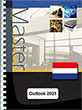
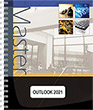
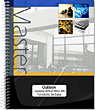
Outlook 2021 (E/E) :Text in English with the English version of the software

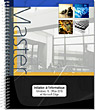
This practical guide provides a detailed introduction to the functions of the Microsoft® Outlook e-mail software (2021 version). It is aimed at anyone who wants to explore and familiarise themselves with all its features. Following a description of the work environment, you will learn how to send e-mails, with the option of using a template and/or adding attachments. You will also find out how to add an automatic signature send back an e-mail, recall an e-mail sent in error, or flag a...
- Niveau Initié à Confirmé
- Parution décembre 2023
- Niveau Initié à Confirmé
- Parution décembre 2023
Following a description of the work environment, you will learn how to send e-mails, with the option of using a template and/or adding attachments. You will also find out how to add an automatic signature send back an e-mail, recall an e-mail sent in error, or flag a message for follow-up. You will learn how to reply to an e-mail, forward it, and deal with any attachments received.
You will learn in detail how to configure your e-mail: select the message formatting, create one or more signatures, set up an absence message, define conditional formatting for messages (e.g. messages with “Budget” in the subject line will be displayed in red), deal with junk e-mail and automate repetitive tasks using quick actions (e.g. automatically forwarding certain e-mails to your manager).
The third section deals with the Calendar: you will learn how to manage your diary and plan appointments, events, send and respond to meeting invitations, publish and share your calendars and create calendar groups.
Outlook also allows you to manage your contacts, to plan tasks and to create notes. You will see how to manage all the items used in Outlook: select items, search, sort, filter and group them, and organise them into categories etc.
One chapter is devoted to archiving e-mails and creating Outlook data files (.pst). The final chapter deals with configuring your e-mail software: how to modify and create new views, manage shortcut groups and folders, add e-mail accounts and customise the ribbon.
Caractéristiques
- Reliure spirale - 21 x 29 cm (A4)
- ISBN : 978-2-409-04423-6
- EAN : 9782409044236
- Ref. ENI : ME21OUT
Caractéristiques
- HTML
- ISBN : 978-2-409-04424-3
- EAN : 9782409044243
- Ref. ENI : LNME21OUT
Environment
- What is Microsoft Outlook?
- Starting/closing Outlook 2021
- Starting Outlook
- Leaving Outlook
- The folder pane
- Using the navigation bar
- The To-Do bar
- The reading pane
- Accessing the Outlook Today page
- Using/Managing the ribbon
- Using the simplified ribbon
- Changing folder view
- What is a view?
- Changing a folder’s view
- Displaying the folder list
- Using Intuitive Help
Sending a message
- What is electronic mail?
- Creating and sending a message
- Inserting an attachment
- Creating a message using stationery or an Outlook theme
- Creating a message using a particular format
- Working with message templates
- Creating a message template
- Using a message template
- Resending a message
- Recalling/replacing a message that has already been sent
- Defining the importance and sensitivity of a message
- Flagging a message for follow-up
- Inserting a message flag for the sender
- Inserting a message flag for the recipient
- Inserting a message flag for the sender and the recipient
- Flagging a received message
- Indicating that a message has been followed up
- Removing a message flag
- Sending a message inviting people to vote
- Sending a message with follow up options
- Defining message delivery options
- Inserting a signature
- Inserting a calendar
- Inserting an Outlook item
Receiving a message
- Reading a received message
- Using the Conversation view
- Marking messages as read or unread
- Replying to a message
- Forwarding a message
- Voting in reply to a message
- Receiving a message with an attachment
- Showing a preview of the attachment in the readingpane
- Opening an attachment
- Saving message attachments
- Saving a single message attachment
- Managing attachments
- Printing the content of messages
Mail: display and configuration
- Changing the view for a message folder
- Managing the layout of message folder contents
- Managing the partial message preview
- Choosing the default message format
- Displaying messages in Plain Text format
- Creating signatures
- Inserting a signature automatically
- Applying a theme or stationery by default
- Changing the default font for messages
- Configuring Outlook alerts for new messages
- Configuring replies/forwarded messages
- Managing the Conversation view
- Changing the Conversation view settings
- Ignoring a conversation
- Reducing conversation size
- Managing the MailTips bar
- Managing messages when you are absent
- Signalling your absence
- Managing messages during your absence
- Managing absence rules
- Applying conditional formatting to message text
- Creating a display rule
- Editing/deleting a display rule
- Managing unwanted mail
- Changing Junk E-Mail filter options
- Adding a name to the Safe Senders, Safe Recipientsand Blocked Senders lists
- Blocking domains/encodings
- Managing filter lists
- Managing Junk E-Mail
- Using the Rules Wizard to manage messages
- Creating a rule
- Managing rules
- Using Quick Steps to automate repetitive tasks
- Setting up an existing Quick Step
- Creating a new Quick Step
- Using a Quick Step
- Managing Quick Steps
Calendar: Basics
- What is the Calendar?
- Viewing the Calendar
- Calendar folder views
- Viewing different dates
- Using the date navigator
- Using the dialogue box
- Viewing the previous or next item
- Viewing a month, a week or a day
- Viewing a month
- Viewing a week
- Viewing one or more days
- Managing the Calendar’s weather bar
- Customising the days, week or month view
- A month at a time
- A week at a time
- Creating an additional calendar
- Viewing several calendars
- Managing multiple time zones
- Saving a calendar as an iCalendar file
Calendar items
- Creating an appointment
- Creating an event
- Converting a message into an appointment or event
- Changing an item in the Calendar
- Creating a recurring appointment, even or meeting
- Removing recurrence from an item
- Forwarding an item
- Responding to an alarm
- Applying an automatic conditional format to appointments and meetings
- Deleting Calendar items
- Moving an item
Meetings
- Planning a meeting
- Adding/removing meeting participants and resources
- Changing the time of a meeting
- Replying to a meeting invitation
- Replying to a meeting request with a new time proposal
- Cancelling a meeting
Calendar: printing
- Printing a Calendar
- Printing Calendar items
- Changing the page setup for each print style
- The Daily print style
- The Weekly print style
- The Monthly print style
- The Tri-fold style
- The Calendar Details style
- The Memo style
- Setting print style margins and orientation
- Setting print style headers and footers
Calendar: configuration
- Defining the work week and working hours
- Displaying week numbers in the Date Navigator
- Managing public holidays
- Adding public holidays
- Displaying public holidays
Sharing and calendar groups
- Calendar group
- Creating a calendar group
- Managing calendar groups
- Managing calendars
- Sharing a calendar
- Opening a shared calendar
Contacts
- What is the Contacts folder?
- Opening the Contacts folder
- Contacts folder view
- Creating a new contact
- Editing a contact’s electronic business card
- Adding contacts to "Favourites"
- Finding a contact quickly
- Linking contacts
- Printing your contacts
- Sending contact information via e-mail
- Creating a contact group
- Editing a contact group
- Exploring the various address books
- Adding a member to the Outlook Address Book
- Adding new members
- Adding existing members
- Removing members from the Outlook Address Book
Tasks
- What is a task?
- Opening the Tasks folder
- Task folder views
- Creating a task
- Creating a recurring task
- Following a task’s progress
- Assigning a task
- Replying to a task assignment request
- Converting a message, appointment or note into a task
- Adding a message/contact to the tasks list
Notes
- What is a note?
- Using the Notes folder
- Changing the Notes folder view
- Creating a note
- Reading/editing a note
- Forwarding a note to other users
- Customising the Icon view
Managing items
- What is an item?
- Making an item private
- Selecting items
- Selecting several adjacent items
- Selecting several non-adjacent items
- Selecting all the items
- Searching for items
- Using instant search
- Searching for items using the Query Builder
- Performing an advanced search
- Moving items to a different folder
- Copying items to another folder
- Deleting an item
- Sorting items
- Using the mouse
- Using the dialogue box
- Grouping items
- First method
- Second method
- Expanding/collapsing groups of items
- Filtering items
- Printing items
- Defining the page setup before printing
Item categories
- Classifying items into a category
- Assigning/changing the Quick Click category
- Managing the main Outlook categories
- Creating a new category
- Modifying a category
- Deleting a category
- Viewing items according to category
- Filtering items in a category
- Viewing all items in a category
Archiving
- Archiving messages
- Managing AutoArchive
- Defining the rules for AutoArchive
- Defining archiving rules for a folder
- Defining archiving rules for an item
- Exporting items to an Outlook (.pst) data file
- Importing items
- Opening an Outlook (.pst) data file
- Cleaning up your mailbox
Views
- Creating a new view
- Creating a new view from an existing view
- Creating a new view without a model
- Managing views
- Managing view columns
- Modifying fonts in Table type views
- Authorising direct changes to data
- Customising Table type views
- Changing the column width
- Changing the column order
- Adding a column
- Removing a column
- Creating a field
- Deleting a field
- Managing line layout
- Changing the alignment of column contents
- Changing the labels of column headers
- Changing the format of columns displaying dates
- Changing the appearance of grid lines
- Showing empty fields (Card view)
Shortcuts
- Adding a new shortcut group
- Renaming a shortcut group
- Removing a shortcut group
- Changing the order of a shortcut group in the list
- Creating a shortcut within a group
- Moving a shortcut
- Renaming a shortcut
- Removing a shortcut
Folders
- What is a folder?
- Creating a folder
- Creating/Managing folder groups
- Creating a search folder
- Creating a predefined search folder
- Creating a custom search folder
- Deleting a folder
- Moving a folder
- Renaming a folder
- Adding/removing folders in "Favourites"
- Creating a new item in a public folder
- Copying a file to a public folder
- Sharing a folder
- Sharing one of the default Outlook folders
- Sharing a custom folder
- Changing sharing permissions
- Opening another user’s folder
- Opening a default Outlook folder
- Opening a custom folder
- Checking your permission level on a folder
E-mail accounts
- Adding an e-mail account
- Configuring an Internet e-mail account
- Sending using a specific e-mail account
- Removing an e-mail account
- Using send/receive groups
- Creating a send/receive group
- Modifying a send/receive group
- Using a send/receive group
- Removing a send/receive group
- Security features
Customising the ribbon
- Showing/hiding tabs
- Creating a new tab/new group
- Managing tabs/groups
- Adding/removing commands from custom groups
- Resetting default settings
- Exporting/importing customisations
Keyboard shortcuts
- Basic navigation
- Search
- Common shortcuts
- Message
- Calendar
- Contacts
- Notes
- Tasks
- Send/Receive
- Items/groups
Symbols
- Symbols
- Inbox folder
- Calendar folder
- Contacts folder
- Tasks folder